Model Serving
Deploy an open-weight model with the built-in serving layer, or bring your own model server on reserved GPUs.
Allocate GPUs to models and Virtual Machines through Neverinstall Private Cloud.
Add Neverinstall Virtual Desktops for graphics applications. We review your cards, drivers and workloads before deployment.
Deploy an open-weight model with the built-in serving layer, or bring your own model server on reserved GPUs.
Assign a whole card or a supported GPU profile to a Virtual Machine. Confirm the mode against your card and workload in the hardware review.
Give CAD and rendering teams Windows or Linux desktops with GPU resources, delivered through Neverinstall Virtual Desktops.
Isolation depends on the mode, card and driver.
| Hardware | Modes to review | Before deployment |
|---|---|---|
| NVIDIA | vGPU, MIG, time-slicing and passthrough | Confirm the card, driver and supported profiles for your workload. |
| AMD | Passthrough and SR-IOV partitions | Confirm support on the specific card in the hardware review. |
| Across servers | Job scheduling or a workload spanning GPUs | Multi-server execution depends on the workload and interconnect. Review both before deployment. |
GPU server
GPUAllocated GPU resources
CPU and memoryHost sharingEarly access
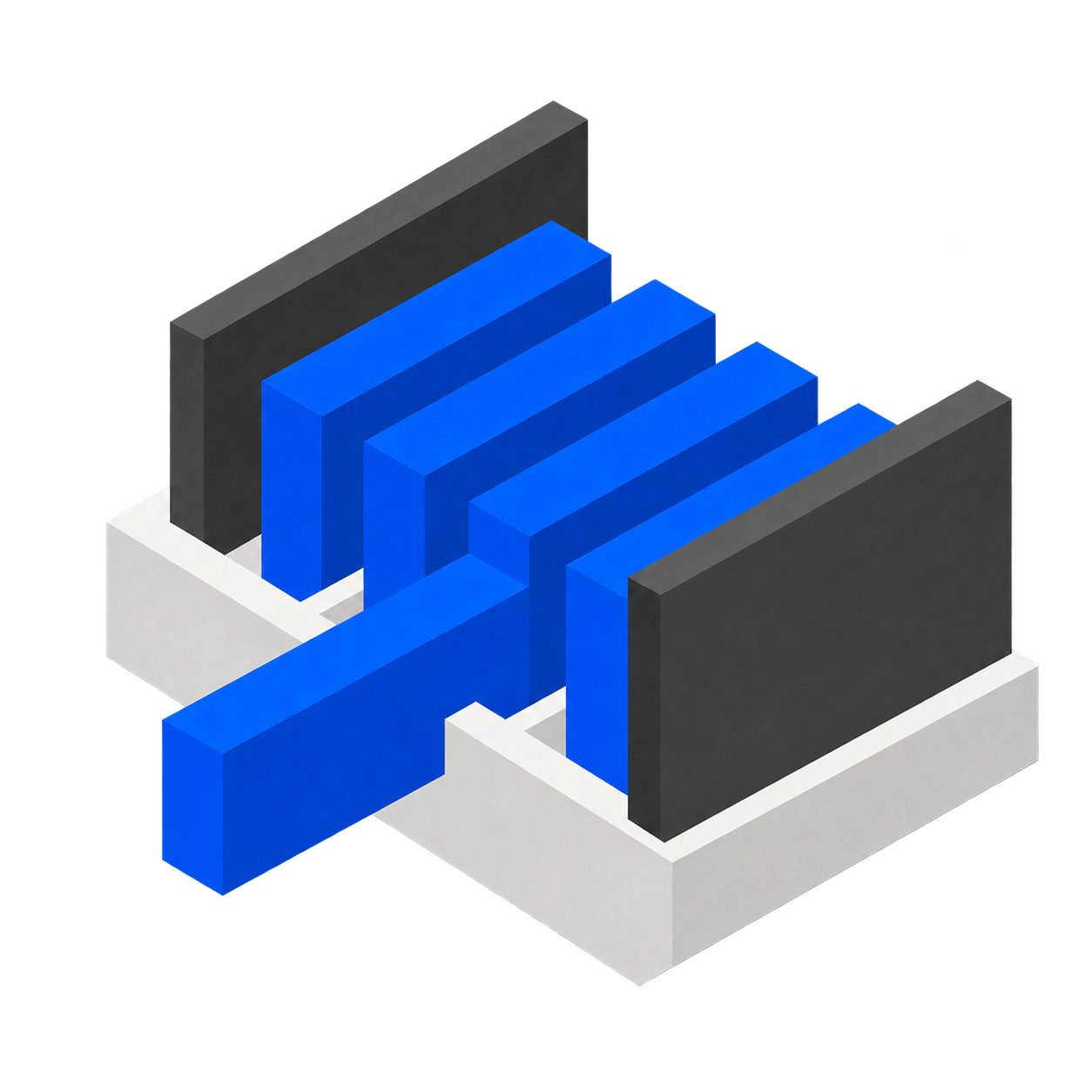
Illustrative allocation on one GPU server. Host CPU and memory sharing is in early access.
Share cards with a team and assign GPU resources to its model server, Virtual Machines or desktops.
Apply team roles, quotas for each GPU profile and network rules for model endpoints.
Track reserved GPU resources by team, with history through resize, stop and restart. Allocation records do not measure GPU utilization.
Review cards, drivers, GPU memory, storage and networking against the workload.
Assign GPU resources, deploy the workload and configure team access and quotas.
Test latency, concurrency and memory use. Use the results to plan capacity and the quote.
Your quote defines the configuration and workload scope.
Per node, with Neverinstall Private Cloud
Neverinstall Virtual Desktops is licensed separately
Hardware and any required third-party licenses
Host CPU and memory sharing is in early access. Test usable host capacity and the effect on inference response times with your hardware and workloads.
Track reserved GPU resources per team, including resize, stop and restart history.
Models and inference run on your servers and network. Support access is agreed with your team first.
Yes. Neverinstall Private Cloud can run offline. Agree on the model, driver and update requirements for the disconnected environment.
It records allocated GPU resources over time, including resize, stop and restart. Use workload measurements to assess utilization and inference performance.
Tell us how many GPU servers you have and which AI and desktop workloads should share them.
We will map the allocation with you.